Tree
This project is a personalized version of Tree, by generic-github-user.
Powershell Code:
Get-ChildItem -Path . -Recurse | ForEach-Object {if ($_.PsIsContainer) {"$($_.FullName)?C"} else {"$($_.FullName)?I"}} > output.txtContinue to Tree
A simple visualizer for file directory tree structures. Files and folders are visualized as a network, with files and the directories they belong to connected. This can be useful for quickly seeing the structure of all a project’s files.
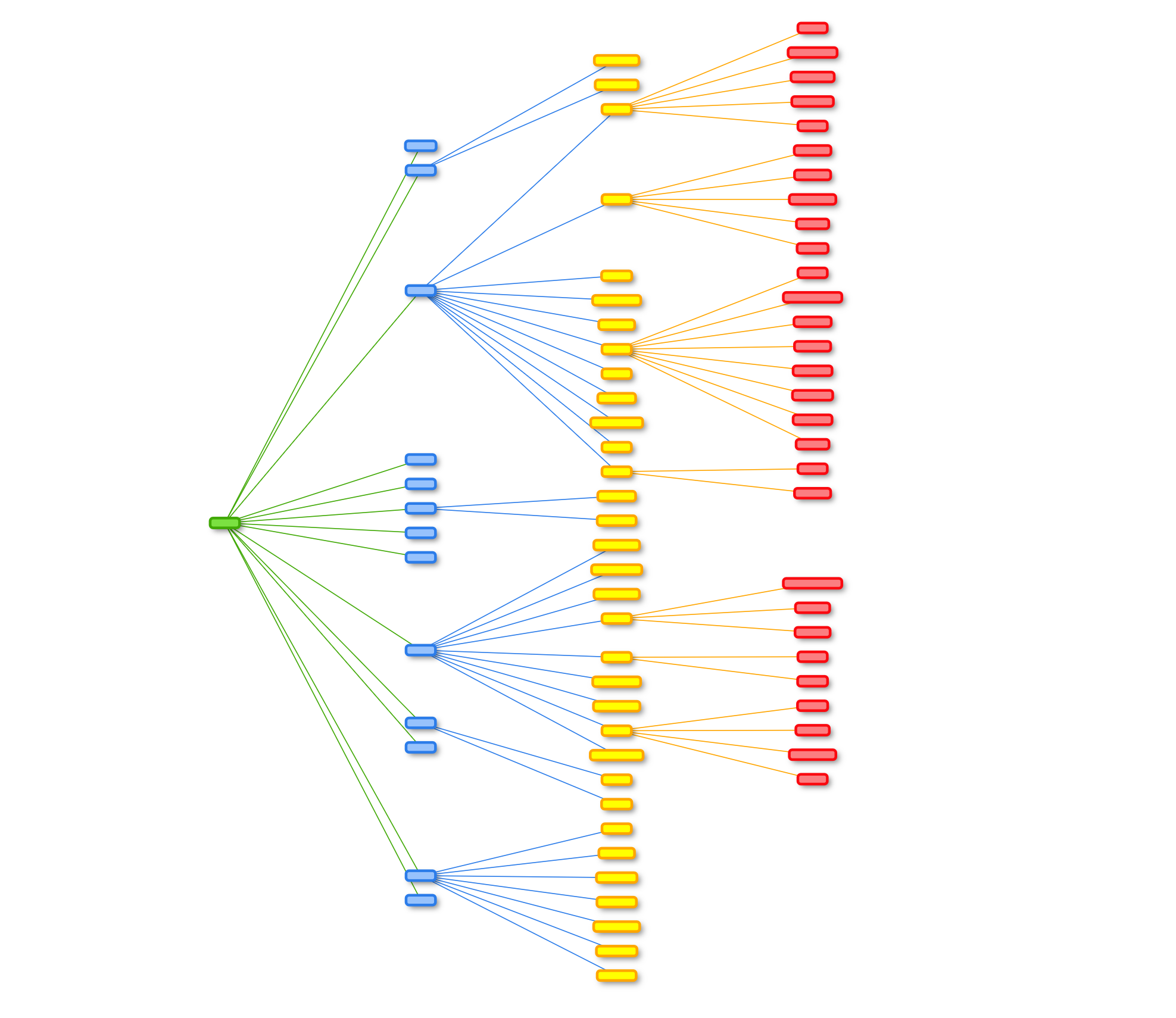
Usage
Before using the program, you will need to create a list of files in your chosen directory. Below are instructions to do so.
Generating a list of files
First, open up Windows PowerShell. On Windows, just press the Windows button in the lower left-hand corner of the screen and search for “PowerShell”.
Next, navigate to the directory you want to visualize with cd C:\Your\Directory\Path.
Once you’re in the correct directory, enter Get-ChildItem -Path . -Recurse | ForEach-Object {if ($_.PsIsContainer) {"$($_.FullName)?C"} else {"$($_.FullName)?I"}} > output.txt. This will create a list the all the files and folders save it to a text file called output.txt in the directory you are visualizing.
You can close the PowerShell now. Navigate to the directory in Windows Explorer or a similar program and open the text file.
Use CTRL + A to select all of the text inside the document, then CTRL + C to copy it to your clipboard.
Once you have the list of file paths, just paste it (CTRL + V) into the text box and press the “Load” button. The network visualization will automatically be generated. Enjoy!
Settings
A number of settings are available to help customize the colors and nodes in the visualization.
Node Color
File Level
By default, nodes are colored by the level at which they fall within the file tree. Level 1 (root) is one color, level 2 (subfolders of root) are another color, etc.
Object Type
Alternatively, nodes nodes can be colored by what type of digital object they are. The root node (if it is shown) is one color, folders (sub-directories) are another color, and individual files are a different color.
File Type
Nodes are colored based on their file extension; every different extension corresponds to a different node color. Folders are colored differently from all files.
Show/hide root node
By default, the file path data created by Windows does not include the root directory (the directory that was mapped). If the root node switch is enabled, Tree will automatically generate the root directory node.
The original program is available here: https://generic-github-user.github.io/Tree/src/.